

App information
Press ⌘I on an app and BundleHound shows what it can read about it: where it is, how it is signed, which Macs it runs on, what launches it. Select several apps and the same page sets them side by side. This section covers the page, the comparison, the tamper warning and the App Store details.
The information page#
Select an app and press ⌘I.
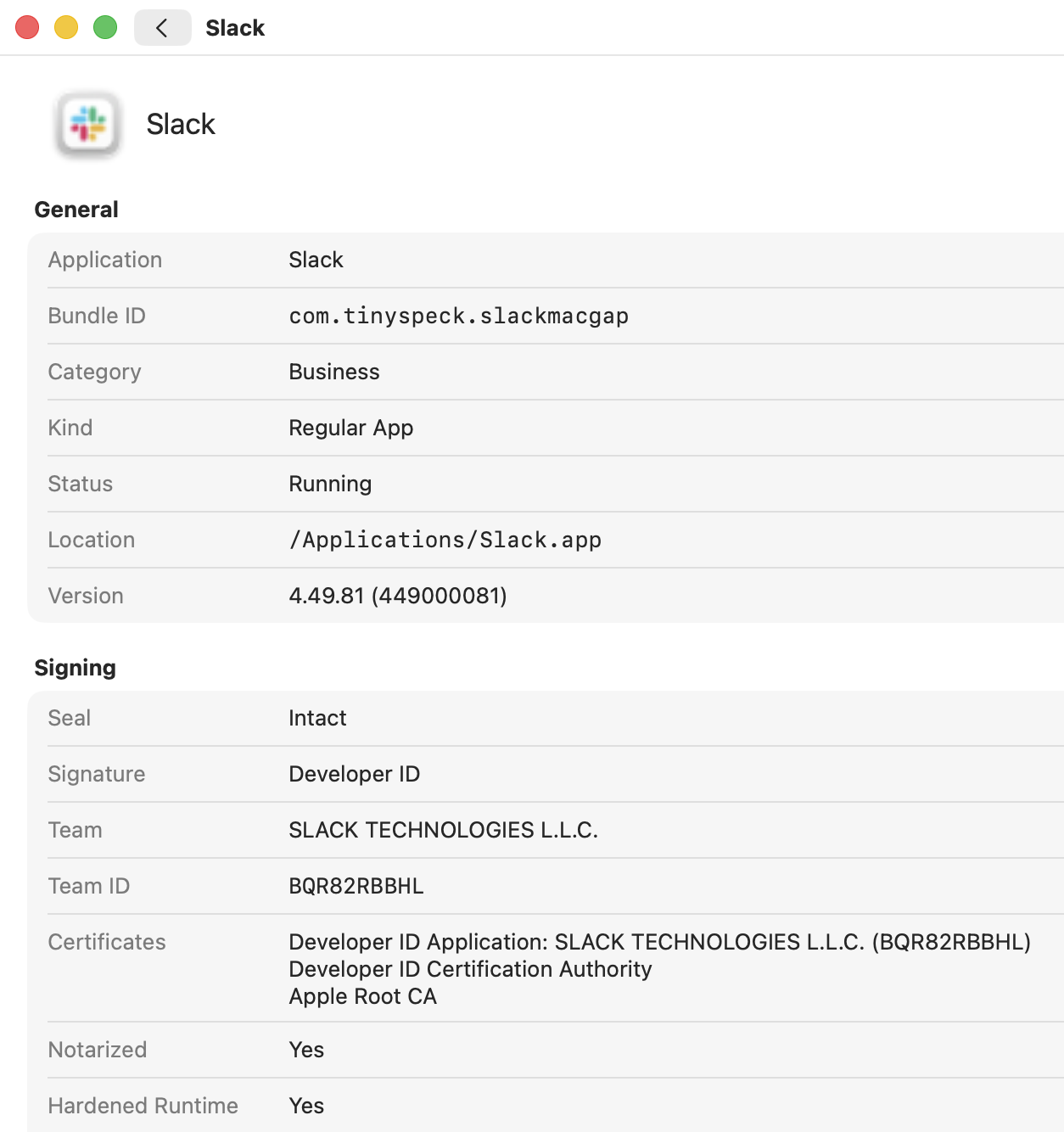
The information page. One box per section, a label on the left and its value on the right.
- 1: back chevron
- 2: the app's icon and name
- 3: the Signing section
- 4: the Seal line
- Select the app in the list.
- Press ⌘I, or right-click the row and choose Get Info.
The page slides in over the list. The app’s icon and name are at the top 2, and the lines are grouped in sections 3. The list keeps its place and selection underneath.
To go back, click the back chevron 1, Back to the List, or press ⌘[ or Escape.
On the page:
- Hover over a label on the left to read what the line means.
- Hover over a value and click Copy to put it on the clipboard.
- Location, and a launch job’s Property List, also offer Reveal in Finder.
- Store Page offers Open Store Page. Developer Website offers Open in Browser.
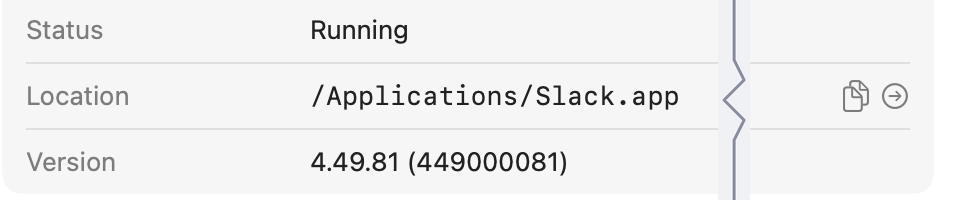
Hover over a value and its buttons appear.
Full size: Hover over a value and its buttons appear.
- 1: Copy
- 2: Reveal in Finder
The sections, and the lines each can hold:
| Section | Lines |
|---|---|
| General | Application, Bundle ID, Category, Kind, Status, Location, Version |
| Signing | Seal, Signature, Team, Team ID, Certificates, Notarized, Hardened Runtime, App Sandbox, Entitlements, Designated Requirement |
| Architecture | Runs On, Rosetta |
| URL Schemes | Schemes |
| Automation | AppleScript, Scripting Dictionary, Shortcuts Actions, Services |
| Launchd | Label, Type, Property List, Program, Run at Load, Keep Alive |
| App Store | App Store ID, Store Page, Price, Store Category, Age Rating, Size, Requires, Store Version, What’s New, Languages, Developer Website, Also from This Developer |
A line without a value is left out, and so is a section without lines.
Good to know
- Not every label has an explanation. A label such as Version or Price says it all.
- Version shows the build number beside the version when the two differ, for example
1.2.3 (456). - Status follows the app live. If it quits while the page is open, it reads Not Running.
- Signature reads Apple, Mac App Store, Developer ID, Development, Ad Hoc or Not Signed. A certificate of any other kind shows under its own name.
- Team and Team ID name the developer account that signed the app. They are left out when the seal is broken, because the signature may be someone else’s (Tamper warning).
- Notarized is asked only of Developer ID apps. In the Mac App Store version of BundleHound it reads Yes for an app with a stapled notarization ticket and is left out otherwise, because that version cannot ask Apple.
- Hardened Runtime and App Sandbox read Yes or No for signed code, and are left out for an unsigned app.
- Rosetta is shown while the app runs: Yes if it is an Intel build that Rosetta 2 translates. It is left out when the app is not running, and on an Intel Mac.
- Runs On reads Apple silicon, Intel or Universal (Apple silicon and Intel).
- Schemes lists the link prefixes the app opens, written like
name://. - Services lists the commands the app adds to the Services menu.
- Type in a launch job reads Agent or Daemon. An app with several jobs gets one section each: Launchd Job 1, Launchd Job 2 and so on.
- To copy every line of every app at once, export the list as JSON.
Comparing apps#
Select two or more apps and press ⌘I.
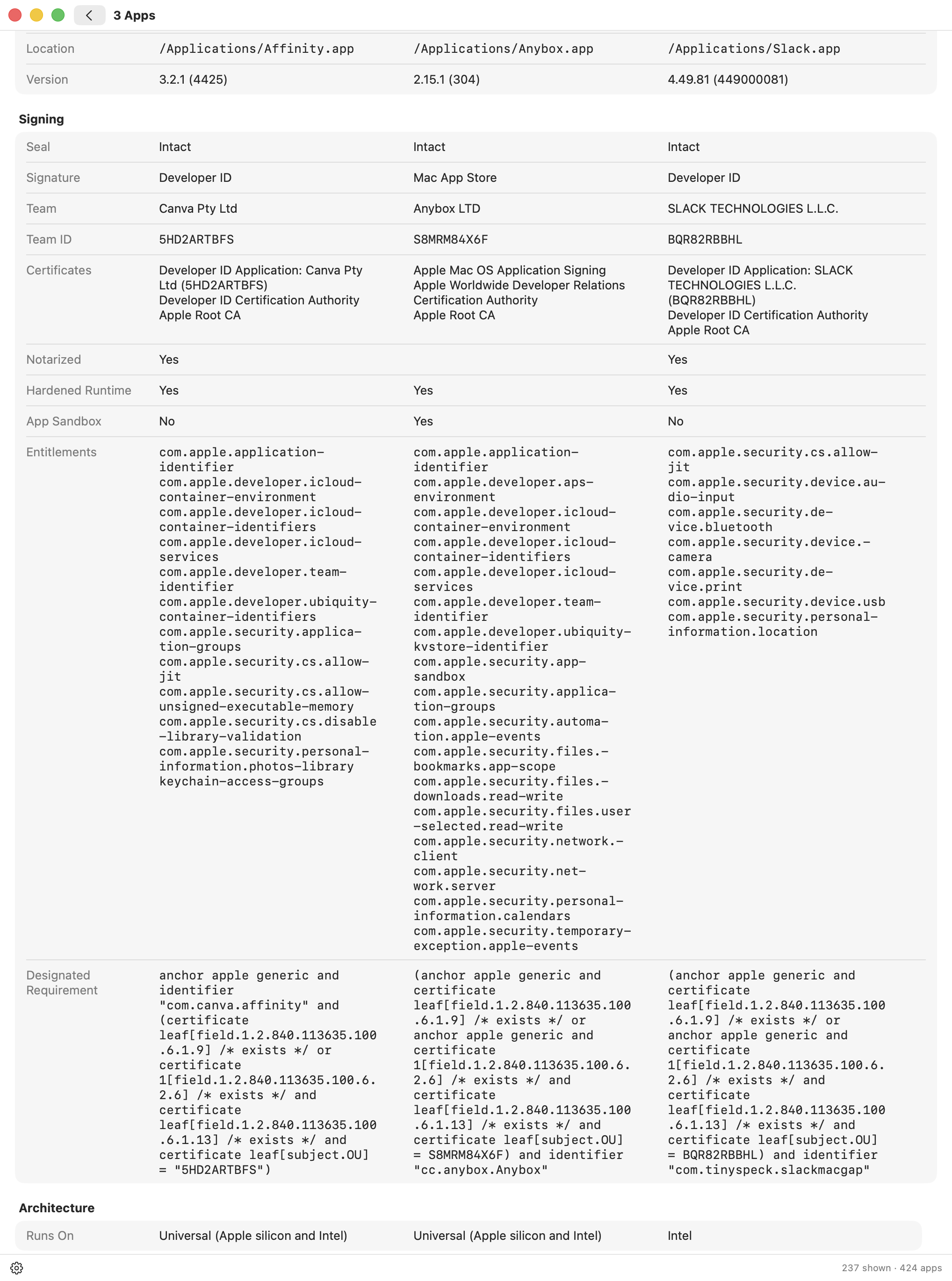
Three apps side by side. One column each, the same lines across.
Full size: Three apps side by side. One column each, the same lines across.
- 1: the title, "3 Apps"
- 2: one app’s column
- 3: a cell left empty because that app has no value
- Select two or more apps: ⌘-click adds single rows and ⇧-click selects a range.
- Press ⌘I, or right-click and choose Get Info.
The title reads 3 Apps 1, or however many you selected. Each app has a column 2 with its icon and name above it, and the same line sits at the same height in every column.
Good to know
- A line shows when at least one of the apps has a value for it. Where another app has none, its cell stays empty 3.
- With many apps the page scrolls sideways.
- An app selected through several of its processes appears once.
- Launch jobs line up job by job: the first job of one app against the first of the next.
- The back chevron, ⌘[ and Escape work as with one app.
- With nothing selected, Get Info is greyed out and ⌘I does nothing.
Tamper warning#
A red row with a warning triangle is an app whose files no longer match its code signature.

A row with a broken seal. The app shown is a test app made for this page, altered on purpose.
- 1: warning triangle
- 2: name and bundle ID in red
- 3: the tooltip
A developer’s signature seals an app’s code and resources. BundleHound checks that seal. When the files no longer match, the app’s name and bundle ID turn red 2, a warning triangle appears beside the name 1, and hovering over the row shows “The app bundle may have been tampered with” 3.
Sometimes that’s a harmless patch, sometimes it’s worth a closer look. The call is yours.
List only the apps with a broken seal

The red triangle pressed. The list holds only the apps with a broken seal.
Full size: The red triangle pressed. The list holds only the apps with a broken seal.
- 1: the red triangle button
- 2: the three filter buttons, greyed out
- 3: the only row listed
- Press the red triangle button, Possibly Tampered Apps 1, left of the search field.
- The list shows only those apps. The three filter buttons 2 are greyed out.
- Press the button again for the usual list.
Read the seal on the information page

The Signing section of the test app.
Full size: The Signing section of the test app.
- 1: the Seal line
- 2: the Signature line, with no Team or Team ID below it
- Select the app and press ⌘I.
- Read the Seal line 1 in the Signing section.
| Seal | Meaning |
|---|---|
| Intact | The files match the signature. |
| The app bundle may have been tampered with (red, with a warning triangle) | The files no longer match. Team and Team ID are left out (2): the signature may be someone else’s. |
| Checking… | The check is running and no earlier answer is known. |
Good to know
- The red triangle button is there while at least one app in the list has a broken seal. Until then it appears greyed out only while its tip is on screen, to show where it will be. The tip says so.
- While the button is pressed, Running Apps Only, All Rows, Every Kind, the kinds in
Settings ▸ Filters, the exclusions and the list length are ignored. The search field still narrows the list. - If the app is also your highlighted active app, its text takes the highlight instead of the red. The triangle stays.
- BundleHound checks a seal the first time it sees an app, when the app changes on disk (an update, a reinstall), including while BundleHound was not running, and about once a day. The check runs in the background. After a reinstall, once the seal is intact, the red mark goes away.
- The information page checks again each time it opens. It shows the last answer it knows while the new check runs, and Checking… only when it knows none. The list follows the newer answer.
- A check reads every sealed file: a fraction of a second for a small app, many seconds for a large one.
- The background check skips apps that come with macOS: they sit on the system’s own sealed volume. The information page checks any signed app you open.
- Unsigned code has no seal to break. The page shows Not Signed and no Seal line.
- An app that carries another app’s signature folder reads as broken too, so the other app’s developer is never shown as its team.
App Store details#
For an app installed from the App Store, the App Store section of the information page shows what the store says about it.
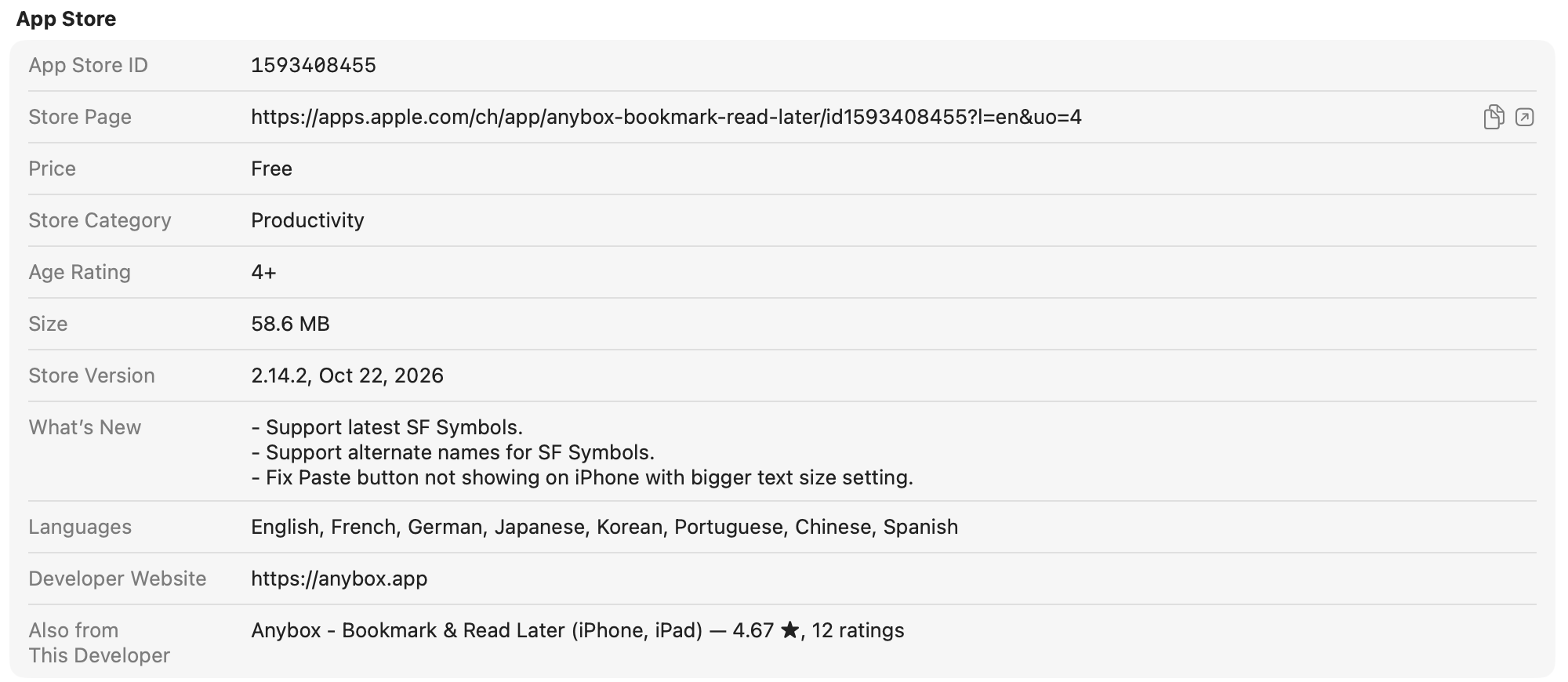
The App Store section, filled in.
Full size: The App Store section, filled in.
- 1: Store Page, with its open button
- 2: Also from This Developer
The section holds the lines in the table above. Store Page 1 opens the app’s page in your browser. Also from This Developer 2 lists the developer’s versions for other devices, such as iPhone and iPad, each with its own Open Store Page button and Apple’s average rating where Apple gives one.
BundleHound asks Apple for these details only when internet access is on. What it sends, when it connects, and how to turn it on or off are in Internet access.
The section is empty or missing
- The app was not installed from the App Store. There is nothing to look up, and the section does not appear.
- Internet access is off. At most the App Store ID shows, read on your Mac. Switch it on in
Settings ▸ Privacy(how). - The details are not fetched yet. The page shows what it has, then the fresh answer. A new app’s details can take a little while: leave the page open, or come back later.
- Apple’s service did not answer, for example because your Mac is offline. The page keeps showing what it already had, and shows nothing for an app it has never fetched.
Good to know
- App Store ID is the number the App Store knows the app by. It is the one that appears in every store link.
- Requires reads like “macOS 13.3 or later”. Store Version reads the version and its date, and can be newer than the copy on your Mac.
- Languages are written out in your language, separated by commas.
- Apple gives ratings for the iPhone and iPad versions. Mac apps carry none.
- When you open the page, details older than a day are asked for again.
- Turn internet access off and the store’s lines disappear from the page at once.