

Internet access
BundleHound works offline. The one thing it can go online for is looking up App Store details for apps you installed from the App Store, and it does nothing online until you allow it. This section says what the lookup is for, what it sends, how to turn it on or off, and what never leaves your Mac.
What it is for#
Internet access is used for one thing: asking Apple’s App Store what it says about the apps on your Mac that came from the App Store.
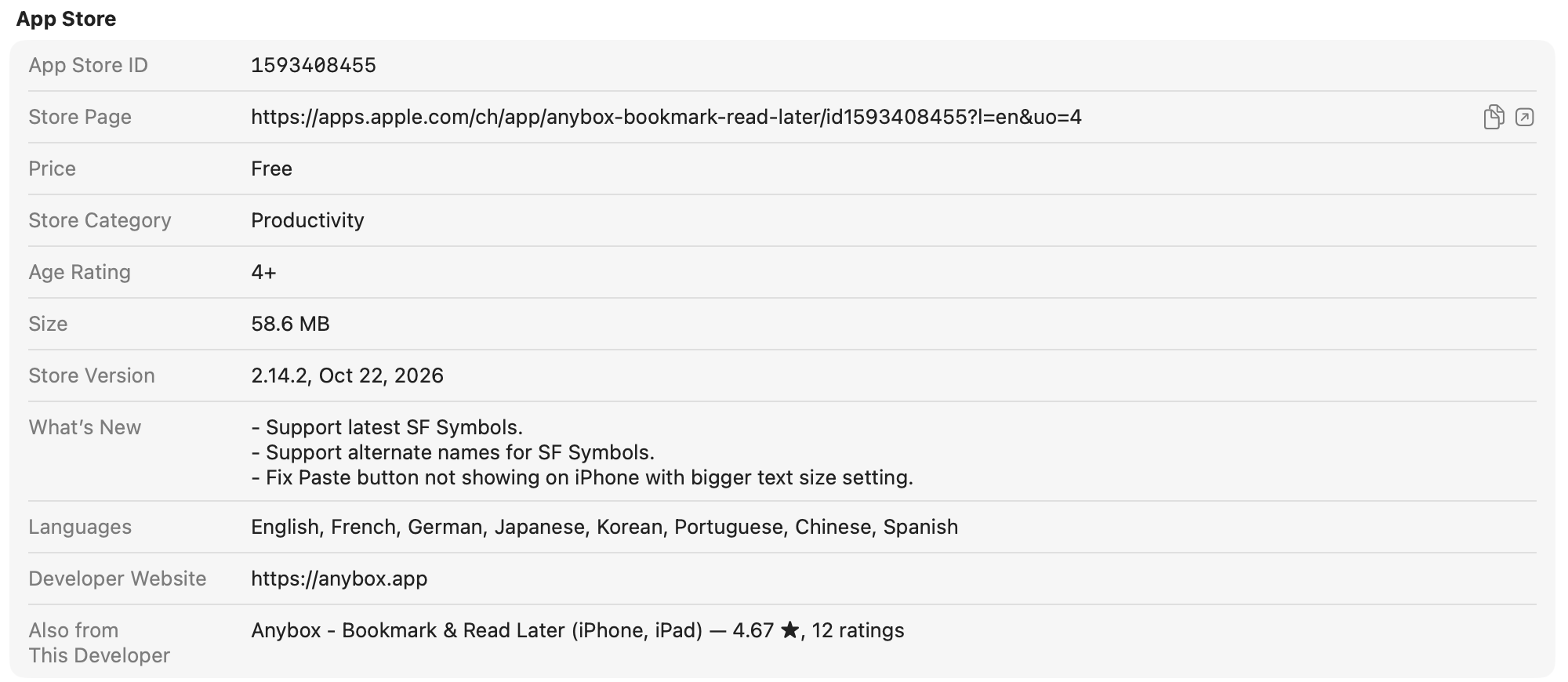
The App Store section of an information page, filled in by the lookup.
Full size: The App Store section of an information page, filled in by the lookup.
- 1: the App Store section
- 2: Also from This Developer
The answer fills the App Store section 1 of the app’s information page: Store Page, Price, Store Category, Age Rating, Size, Requires (the macOS version), Store Version, What’s New, Languages and Developer Website. Also from This Developer 2 lists the developer’s iPhone and iPad versions of the app, with Apple’s ratings for them.
Apps from anywhere else are never looked up. Nothing else in BundleHound uses the internet.
Good to know
- The App Store ID line comes from Spotlight on your Mac, not from Apple. It shows even with internet access off, and it is the only line of the section that does.
- With internet access on, the Team line of an App Store app can take the developer’s name from the store when the app’s own certificate names none.
- If the section is empty or holds only the App Store ID, one of four things is true: the app did not come from the App Store, internet access is off, the details are not fetched yet (leave the page open a moment), or Apple did not answer.
What is sent#
BundleHound sends Apple a number for the app, your Mac’s region and BundleHound’s language and, like any connection, your IP address, over HTTPS, to Apple only.
What the App Store lookup sends, and to whom.
- 1: your Mac
- 2: the requests
- 3: Apple's lookup service
- 4: BundleHound's maker, which receives nothing
What goes out, for one app. BundleHound sends up to two requests 2, one after the other:
- The app’s listing:
https://itunes.apple.com/lookup? id=<App Store ID>& country=<country>& lang=<language> - The developer’s apps, to find the same app for iPhone and iPad:
https://. It goes out only when Apple’s first answer names the developer.itunes.apple.com/lookup? id=<developer ID>& entity=software& country=<country>& lang=<language>
| Field | What it holds | Where BundleHound gets it |
|---|---|---|
id in the first request |
The App Store ID of one app, the number in its store link. | Spotlight, on your Mac. |
id in the second request |
The developer’s ID on the App Store. | Apple’s answer to the first request. |
entity |
The fixed word software, which asks for the developer’s apps. |
BundleHound. |
country |
The country code of the region set in your Mac’s settings, in lower case, such as ch. |
System Settings ▸ General ▸ Language & Region. us if your Mac reports no region. |
lang |
BundleHound’s interface language and that language’s usual region, in lower case. BundleHound’s interface is English, so it is en_us. |
BundleHound’s interface language, not your Mac’s. |
To whom, and over what. To Apple’s lookup service 3 at itunes.apple.com, over HTTPS, straight from your Mac 1. It is the only recipient. BundleHound’s maker 4 has no server in between and never receives a request or an answer.
What is not sent. No Apple ID, no account, no name, and nothing else about you or your Mac. BundleHound sets no headers and no body of its own; beyond what is listed above, a request carries only the standard headers macOS adds to any web request. If your IP address reaching Apple matters to you, leave the lookup off, or use a VPN.
How often. BundleHound looks up each app at most once in 24 hours; only a lookup that failed can be tried again sooner, in the last two cases below. One lookup is the one or two requests above. The time of a lookup is noted before its request goes out, so quitting BundleHound does not bring the next one forward.
- In the background, once an hour, BundleHound goes through the App Store apps it found installed. It asks about each one it has not asked about in the last 24 hours, one app every 6 seconds.
- When you select an app in the list, it asks about that app if it has not asked about it in the last 24 hours.
- When you open an app’s information page, it asks about that app under the same rule, and also when it has nothing saved for that app, even if a lookup failed earlier that day. The page shows what it has, then the fresh answer.
- If that lookup gets through on a day when other apps’ lookups failed, BundleHound goes through the apps once more and asks again about the ones that failed.
Over time, then, Apple’s service receives the App Store ID of each App Store app on your Mac, whether or not you open it.
What comes back. The details listed in What it is for. BundleHound keeps them in its own folder on your Mac, with a history of the prices, versions and ratings it noticed. It sends them nowhere.
The full policy is on the privacy page.
Good to know
- The App Store ID is read on your Mac. Asking Apple is what needs internet access, not reading the ID.
- A lookup fails when there is no connection or when Apple’s service answers with an error. It keeps what BundleHound already had for that app.
- When the background pass, a selection and the information page ask about the same app at the same moment, they share one lookup. If that lookup fails, the information page can still ask again, under the rule above.
- BundleHound reads your Mac’s region when it starts. The answers are kept per country, so after you change the region, BundleHound asks again, for the new country, from its next launch.
- A new app’s details can take a little while to appear.
Turning it on or off#
Open Settings ▸ Privacy and switch Allow internet access. It is off until you allow it.
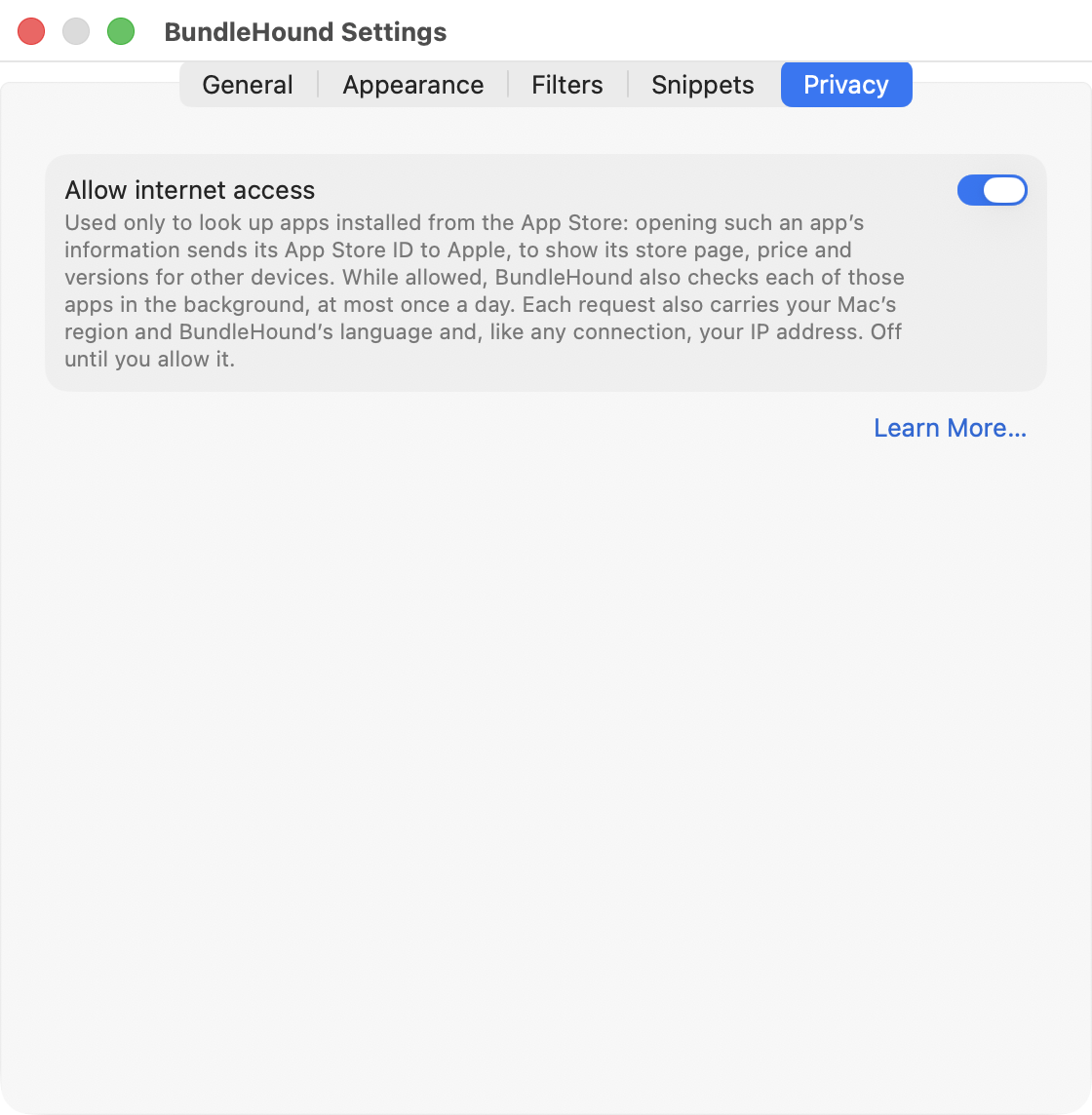
The Privacy pane.
- 1: Allow internet access
- 2: Learn More…
- Open Settings with the gear at the bottom left of the list, or press ⌘,.
- Click Privacy.
- Switch Allow internet access 1 on or off.
Learn More… 2 opens this page in your browser.
Turning it on needs no confirmation. Turning it off asks first.
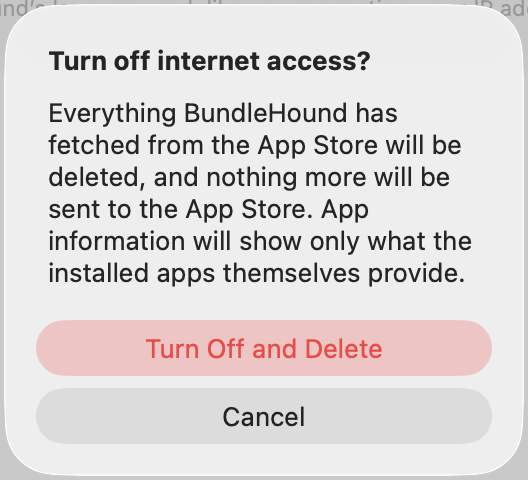
Turning it off asks first.
- 1: Turn Off and Delete
- 2: Cancel
- Turn Off and Delete 1 turns it off, stops all requests and deletes everything BundleHound fetched from the App Store. App information then shows only what the installed apps themselves provide.
- Cancel 2 leaves the switch on.
Good to know
- The first launch asks the same question, “Connect to the App Store?”, with Allow and Don’t Allow. Neither is the default and Return does nothing there. Closing the window counts as Don’t Allow, and the question is not asked again.
- Right after you turn it on, opening an information page looks that app up at once. The background pass picks it up within the hour.
- The deletion covers the App Store lines of every information page, the history of prices, versions and ratings, developer names learned from the store, and the record of when each app was asked about. The file is emptied, not only marked. If you turn it on again, BundleHound starts afresh.
- Developer names read from an app’s own signing certificate stay, because they were never fetched. So does the App Store ID line, which comes from Spotlight.
- An answer that arrives after you confirm is thrown away.
- With internet access off, App Store details are also left out of exports.
- Everything else in BundleHound works without a connection.
What never leaves your Mac#
Everything except the lookup above stays on your Mac.
- Your apps. The list, and everything BundleHound reads about each app: names, bundle IDs, paths, versions, signatures and seals, entitlements, launch jobs, and when you last used it.
- Your choices. Settings, exclusions and snippets, and what you copy.
- Exports. A file is written only where you choose, in the save panel. BundleHound uploads nothing.
- No account. There is no sign-in and no account of any kind.
- No analytics. There is no analytics, advertising, tracking or crash reporter in BundleHound. Its privacy manifest declares no tracking and no collected data.
- Your clipboard. BundleHound writes to it when you copy something, and never reads it.
- The connection itself. BundleHound runs in the macOS App Sandbox. Its only network permission is for outgoing connections, and the lookup is the only thing that uses it.
Good to know
- Links in BundleHound open in your default browser. BundleHound does not load those pages itself. That covers the Help menu, the store page and developer website of an app, and the link to chrisgve.com in the About window.
Help ▸ Report a Problem…opens the support form in your browser with the BundleHound version, the macOS version and the Mac type (Apple silicon or Intel) filled in. They sit in the address after the#, which the browser never sends. Nothing leaves your Mac until you press Send on the form. This does not depend on the internet-access switch.