
The list
The list shows the apps on your Mac, one row per app, with the bundle ID beside the name. At first it shows the apps that are running, the 10 you used last, and the kinds of app most people look for. This section explains how to read the list, how to search it, how to narrow or widen it, how to exclude apps, and what to check when an app you expect is not there.
Reading the list#
Each row is one app, with its bundle ID beside its name.
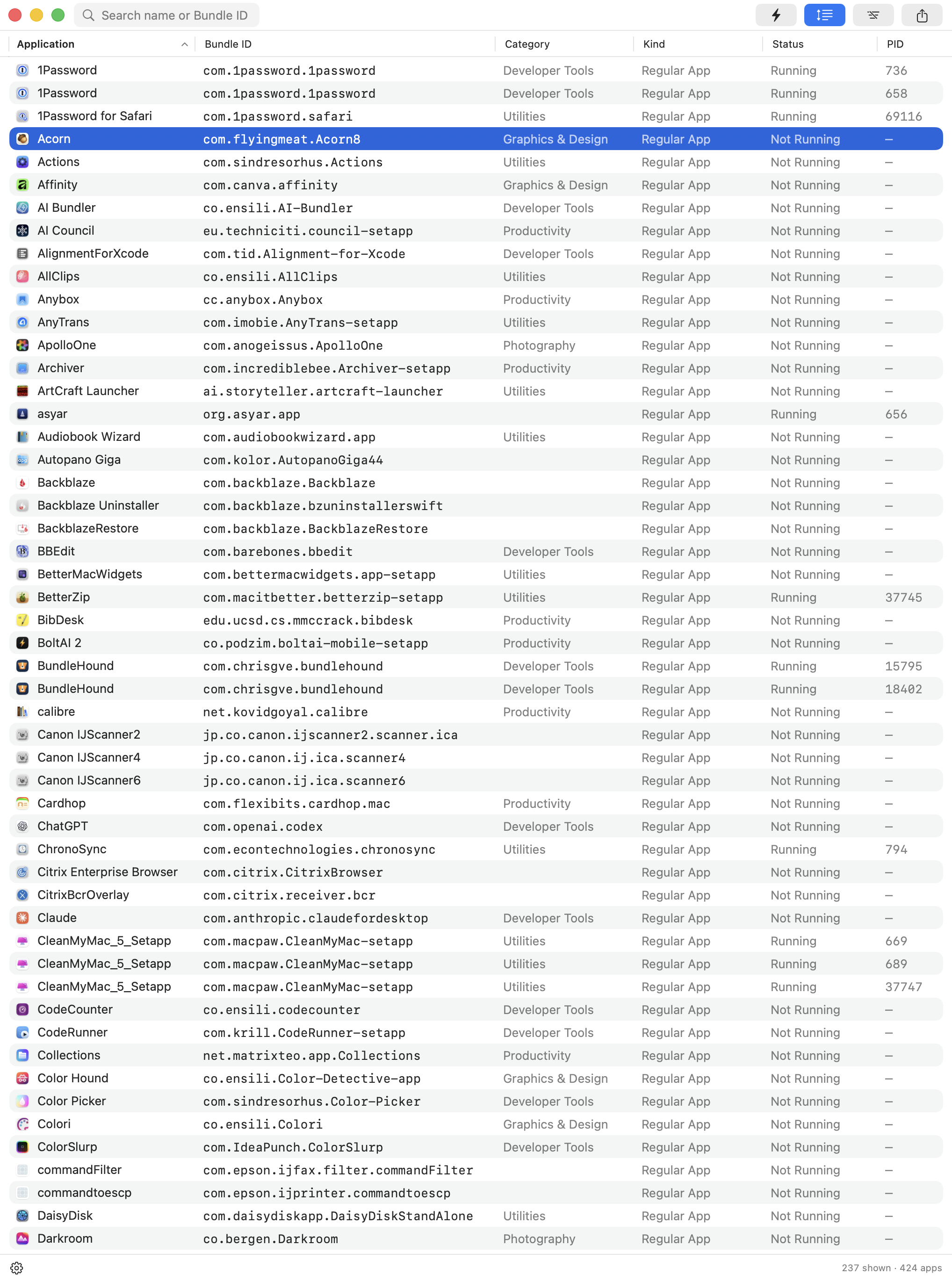
The six columns. Application, Bundle ID and Category always show. PID is off until you turn it on.
- 1: Application
- 2: Bundle ID
- 3: Category
- 4: Kind
- 5: Status
- 6: PID
- 7: Settings gear and counts
| Column | Shows | |
|---|---|---|
| 1 | Application | The app’s name and icon. |
| 2 | Bundle ID | The bundle ID, such as com.apple.Safari. A dash (—) when the app declares none. |
| 3 | Category | The App Store category the app declares for itself. Blank when it declares none. |
| 4 | Kind | How the app runs. See the next table. |
| 5 | Status | Running or Not Running. |
| 6 | PID | The process ID of a running app. Off at first. |
Kind says how the app runs.
| Kind | Meaning |
|---|---|
| Regular App | An ordinary app with a Dock icon and windows. |
| Menu Bar App | A user interface but no Dock icon, such as a menu-bar extra. |
| Background App | No user interface at all. |
| System | Code that runs for the whole Mac: macOS’s own plumbing such as the Dock and Control Center, third-party daemons, privileged helpers and system extensions. |
To arrange the columns:
- Right-click a column header and pick Kind, Status or PID to show or hide it.
Settings ▸ Appearance ▸ Columnschanges the same setting. - Drag a header sideways to reorder the columns.
- Click a header to sort by it. Click it again to reverse the order.
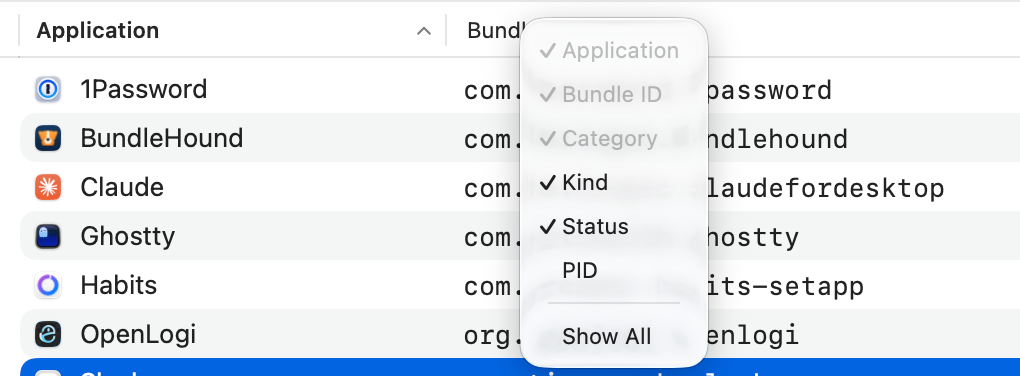
The column header's menu.
Full size: The column header's menu.
- 1: column header
- 2: Kind, Status and PID
The bottom bar holds the Settings gear and two numbers, such as 12 shown · 410 apps. shown is the number of rows in the list now. apps is every app BundleHound knows on this Mac. The gap between them is what the filters hide.
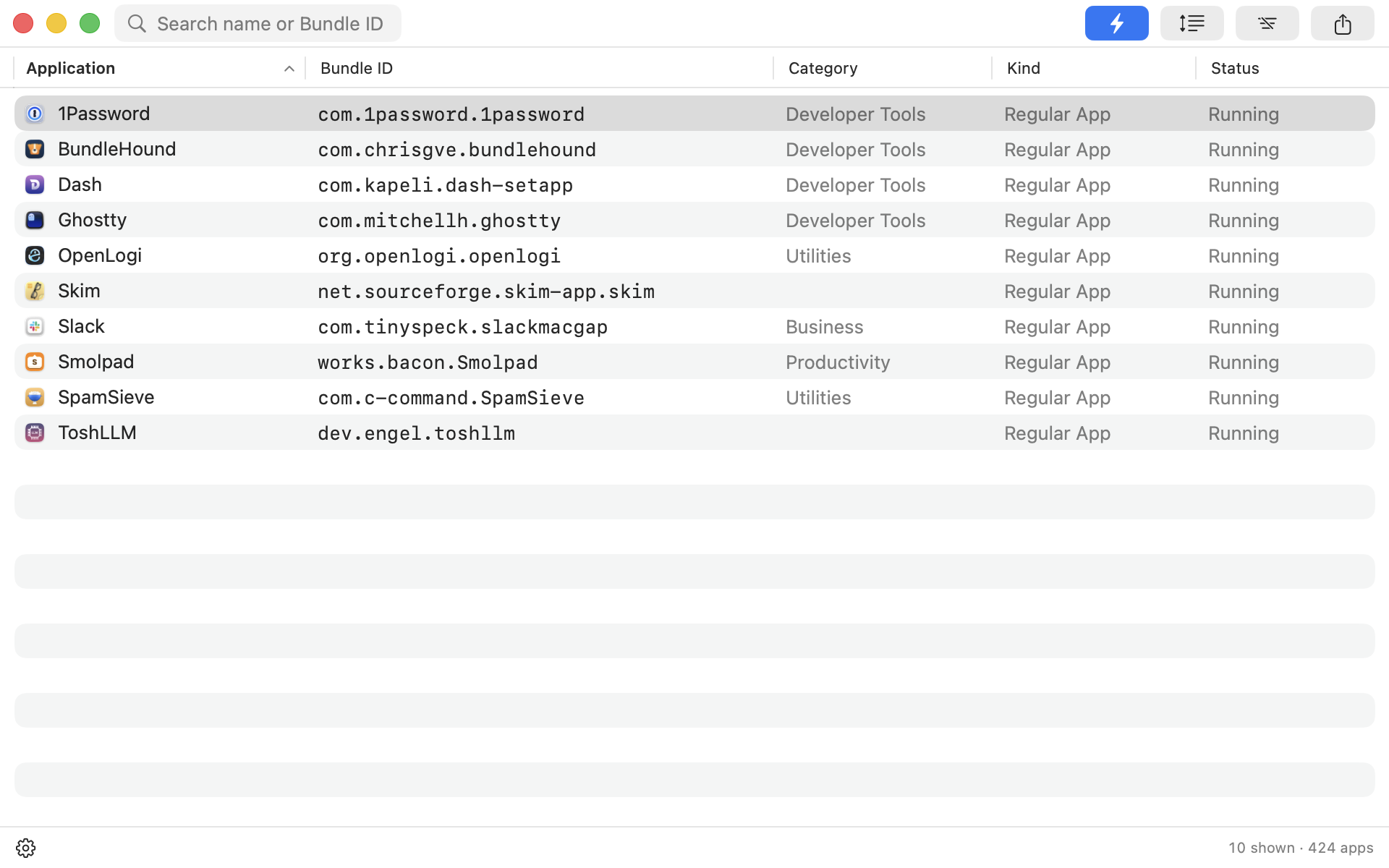
Two kinds of row stand out:
- A row in semibold, filled with your highlight color, is the app you were in before you opened the list. It needs
Settings ▸ Appearance ▸ List highlights active window. - A red row with a warning triangle is an app whose files no longer match its code signature. See App information.

The row of the app you came from.
Full size: The row of the app you came from.
- 1: the highlighted row
Good to know
- An app that runs as several processes is one row. Show the PID column and each process gets its own row. Helpers inside an app, and widgets, belong to that app’s row.
- shown counts rows, so with PID shown an app with three processes counts three. apps counts apps.
- System wins over the other kinds. Finder (an ordinary app) and Control Center (a menu-bar app) both read System. Apple’s own apps such as Mail show their own kind.
- Kind and Category come from the app’s bundle, so an app has them whether or not it runs.
- Many apps declare no category. BundleHound leaves the cell blank rather than guess. Hover over the Category label on an app’s information page for the same explanation.
- Rows that the sorted column cannot tell apart stay in name order. Sorting by Category puts apps without a category last.
- If the highlighted app is also a red row, its text takes the highlight instead of the red. The triangle stays.
- The list follows apps that launch, quit, are installed or are deleted. To read the running apps again at once, choose
View ▸ Refresh(⌘R).
Search#
Type part of an app’s name or bundle ID, and the list narrows to the matches.
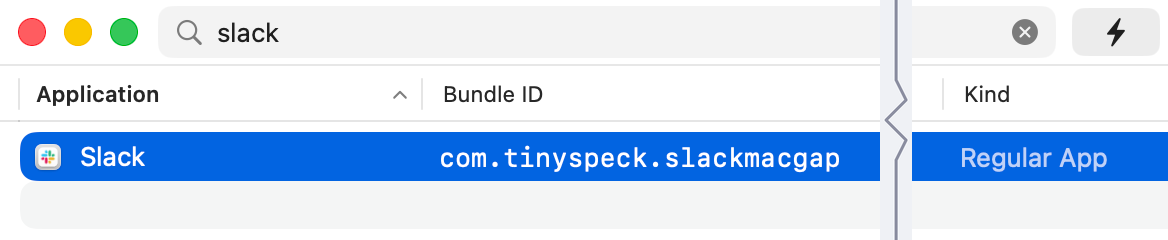
The search narrows the list as you type. Here the text is slack.
Full size: The search narrows the list as you type. Here the text is slack.
- 1: search field
- 2: clear button
- 3: selected match
- Open the list. The search field 1, “Search name or Bundle ID”, has the cursor.
- Type part of the name (
slack) or of the bundle ID (tinyspeck). - Press ↓ to move to a match 3. ↓ and ↑ move between matches without leaving the field.
- Press ⌘C to copy the bundle ID, or ⌘I to open the app’s information.
To clear the search, press Escape in the field or click the clear button 2.
Good to know
- The text can appear anywhere in the name or the bundle ID. Case and accents are ignored, so
safarifinds Safari. Spaces at the start or end are ignored. - Search narrows the list as the filters leave it:
- Running Apps Only on: only running apps are searched.
- All Rows off: only the most recently used matches show. Press All Rows for every match.
- An exclusion in
Settings ▸ Filters: the excluded app is not found. - The red triangle button pressed: search narrows the list of possibly tampered apps.
- If a row in view is already selected, ↓ moves down from it. With no selected row in view, ↓ starts at the first row and ↑ at the last. The selection stops at the ends.
- With the field empty, Escape goes back from an app’s information page. When the list is attached under the menu-bar icon, the next Escape closes it.
- ⌘C in the field copies the selected text if there is any. With no text selected, it copies the selected rows’ bundle IDs, as in the list.
- An app does not come up? See When an app is missing.
Filters#
Three toolbar buttons and the kinds you choose in Settings decide which apps the list shows.

The three filter buttons, right of the search field.
Full size: The three filter buttons, right of the search field.
- 1: Running Apps Only (the bolt)
- 2: All Rows
- 3: Every Kind
Hover over a button for its description. A button that is on takes your Mac’s accent color, blue in the pictures below. One that is off is grey. Each button stays on or off until you press it again, also after BundleHound quits.
| Button | On | Off |
|---|---|---|
| Running Apps Only (1) |  Only running apps. On when BundleHound is new. |
 Installed apps as well. |
| All Rows (2) |  Every row the filters let through. |
 The short list: your most recently used apps. |
| Every Kind (3) | Same button, in your accent color. Every kind of app, whatever Settings ▸ Filters allows. |
 Only the kinds switched on in Settings ▸ Filters. |
The short list holds 10 rows unless you change it, and 5 at the least. To change it, set Settings ▸ Appearance ▸ List length in short mode ▸ Last-used apps shown.
The figure shows the order in which the list is narrowed.
How the list is narrowed. All Rows skips the length step, and Every Kind skips the kinds step.
To choose which kinds the list shows:
- Open
Settings ▸ Filters. - Under Shown in the list, switch Regular App, Menu Bar App, Background App and System on or off.
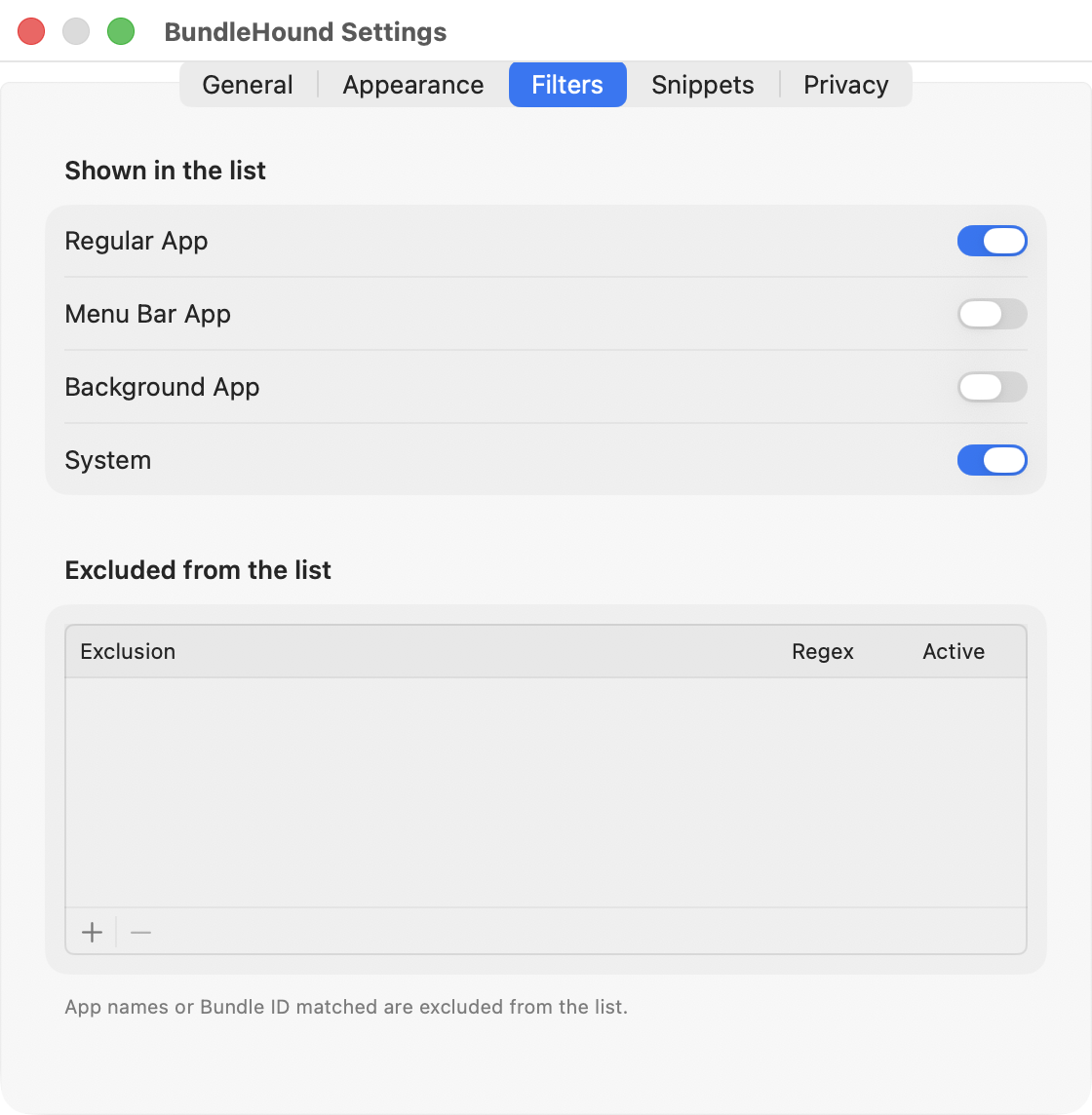
The kinds at their defaults.
Full size: The kinds at their defaults.
- 1: Regular App
- 2: Menu Bar App
- 3: Background App
- 4: System
The whole pane is in Settings.
When the red triangle button is pressed, the list shows only possibly tampered apps and the three buttons are greyed out. Press the triangle again for the usual list. The button is there only while an app’s seal is broken.

With the red triangle pressed, the filter buttons are greyed out.
Full size: With the red triangle pressed, the filter buttons are greyed out.
- 1: red triangle button
- 2: the three greyed buttons
Good to know
- The short list holds the apps you opened last: the date Spotlight records when you open an app, plus the apps BundleHound sees come to the front while it runs. Apps never seen in use come after, running ones first, then by name.
- The short list is chosen by use alone. Sorting a column orders those rows. It does not pick other ones.
- The short list counts rows, not apps. With PID shown, an app running as three processes takes three places. The shown count uses the same unit.
- Turning Every Kind off restores your choice in
Settings ▸ Filters. The button never changes those settings. - New BundleHound has Regular App and System on.
- At least one of Regular App, Menu Bar App and Background App stays on. Switching off the last one turns Regular App back on.
- System works across the other three. Off: everything that runs at system level is left out. On: system-level code shows when its own kind is also on. Finder needs Regular App, Control Center needs Menu Bar App, a daemon needs Background App. See Kind in Reading the list.
- The lower half of the Filters pane, Excluded from the list, hides single apps. See Exclusions.
Exclusions#
An exclusion hides every app whose name or bundle ID matches it, until you remove it or switch it off.
To exclude an app from the list:
- Right-click the app. To exclude several, select them first.
- Choose Exclude “App Name”, or Exclude These 3 Apps (with the number you selected).
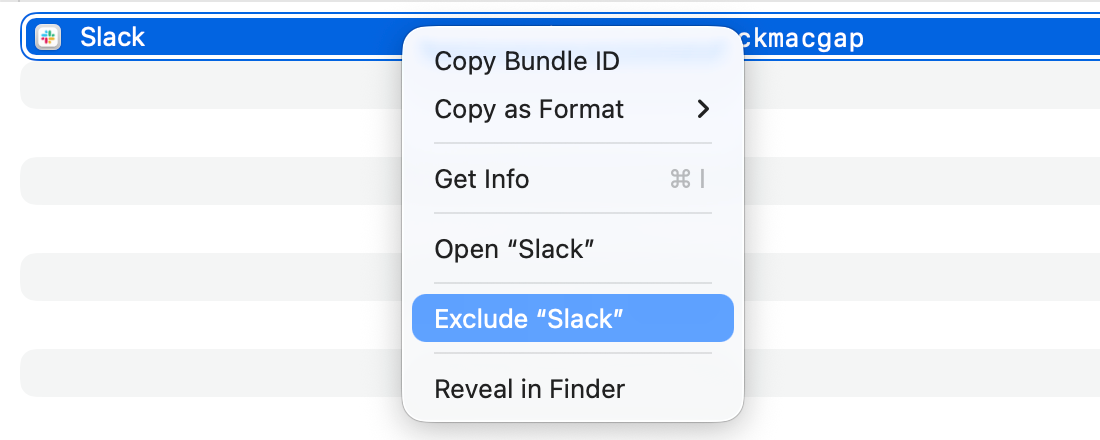
The row menu.
- 1: Exclude “Slack”
The app disappears at once. BundleHound adds one exclusion for it to Settings ▸ Filters.
To write your own:
- Open
Settings ▸ Filters. - Under Excluded from the list, click + (Add an exclusion) 1.
- Type the text to match in the Exclusion column (2).
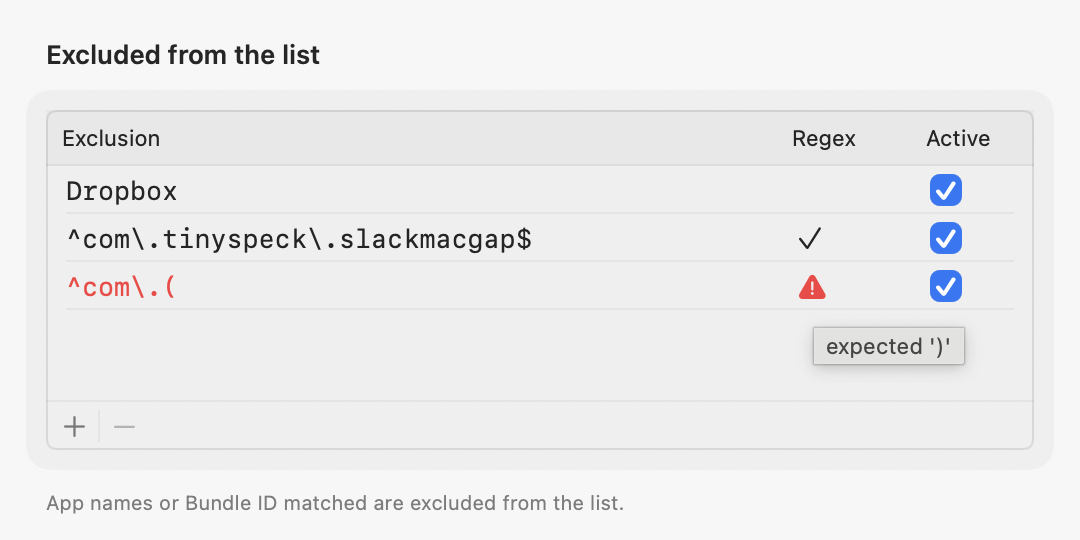
Three exclusions: plain text, a working regular expression and a broken one.
Full size: Three exclusions: plain text, a working regular expression and a broken one.
- 1: + (Add an exclusion)
- 2: Exclusion
- 3: Regex
- 4: Active
- 5: − (Remove the selected exclusions)
- Changes are saved as you make them.
- Uncheck Active 4 to switch an exclusion off and keep it.
- Select an exclusion and click − 5 to delete it.
- The Regex column 3 shows a checkmark for a working regular expression, nothing for plain text, and a red warning triangle for a broken one.
BundleHound reads the type from the pattern itself. There is no switch.
- Plain text matches anywhere in the name or bundle ID, ignoring case and accents.
dropboxhides every app with “Dropbox” in its name ordropboxin its bundle ID. - A pattern that contains any of
^ $ * + ? ( ) [ ] { } | \is a regular expression. It is matched against the name and the bundle ID, ignoring case, and matches anywhere unless you anchor it with^and$.^com\.dropbox\.hides every bundle ID that starts withcom.dropbox..
Good to know
- The row menu adds an exact rule, such as
^com\.tinyspeck\.slackmacgap$, matched on the bundle ID. An app with the same name from another developer stays in the list. An app without a bundle ID is matched on its exact name. - A dot alone does not make a regular expression:
com.dropbox.desktopis plain text. Once a pattern contains another of the characters above, its dots mean “any character”. - A broken regular expression turns its text red. Hover over the triangle for the reason, for example a missing closing bracket. A broken pattern hides nothing, so a half-typed one never empties the list.
- A new exclusion is empty until you type in it. An empty one hides nothing.
- To see an excluded app again, switch its exclusion off or delete it.
- Exclusions apply to the list and to search. Only the list of possibly tampered apps ignores them.
When an app is missing#
A setting usually hides it. Start with the counts at the bottom of the window, such as 12 shown · 410 apps (see Reading the list). If the second number is much larger than the first, a filter is at work.
Check these in order:
- The search field. Text left in it narrows the list. Press Escape in the field, or click the clear button.
- Running Apps Only. The bolt button is on when BundleHound is new. Press it to include apps that are not running.
- All Rows. While it is off, the list holds only your most recently used apps, 10 unless you changed it. Press All Rows, or raise
Settings ▸ Appearance ▸ List length in short mode ▸ Last-used apps shown. - Every Kind. New BundleHound shows Regular App and System only, so menu-bar and background apps are hidden. Press Every Kind to test. To keep a kind, switch it on in
Settings ▸ Filters ▸ Shown in the list. - Exclusions.
Settings ▸ Filters ▸ Excluded from the listhides every app that matches a pattern. A short plain-text pattern can hide more than you meant. Uncheck its Active box to test. See Exclusions. - The red triangle. If the red triangle button is left of the search field and pressed, the list shows only possibly tampered apps. Press it again.
- Where the app is installed. An app that is not running is found only in
/Applications,/System/Applicationsand/Library. - Whether it is an app. BundleHound lists apps: bundles that end in
.app. Plug-ins, preference panes and Quick Look generators are not listed.
Good to know
- Running apps are listed wherever they are.
/Applicationsand/System/Applicationsare read with the folders one level inside them./Libraryis read several levels down, where some developers install helper apps.- An app in
~/Applications, the Applications folder in your home folder, or anywhere else, shows only while it runs. The Mac App Store sandbox does not let BundleHound read your home folder. - Helpers and extensions inside an app are part of its row. Show the PID column to see each running process as a row.
- Code that belongs to no app is listed only when it runs for the whole Mac, such as a launch daemon, a privileged helper or a system extension. Its kind is System.
- Installed and deleted apps appear and disappear on their own. To read the running apps again at once, choose
View ▸ Refresh(⌘R). - Still missing? Write to support with the app’s name, where it is installed, and whether it is running.